






The macOS 26.2+ Diagnostic Gate: Only One Type of Third-Party LCD Gets Through
Introduction: The Diagnostic Binary
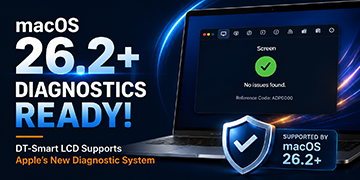
When a MacBook running macOS 26.2+ undergoes a display replacement, the system does not remain neutral. It actively evaluates the new panel through an automated diagnostic sequence that concludes with one of two outcomes: ADP0000 (No Issues Found) or ADP001 (Potential Issues Found). There is no middle ground.
This binary pass/fail mechanism represents a significant shift in the aftermarket repair landscape. No longer is a display replacement judged solely by visual quality or basic functionality—the operating system itself now renders a verdict that appears in the system settings, persists in service history logs, and directly influences the end-user experience.
The following analysis examines a real-world diagnostic workflow for a third-party LCD, documenting each step from initial system recognition through final verification. The visual evidence presented spans four distinct phases: initial system state, configuration trigger, diagnostic result, and post-configuration validation. Each phase reveals specific technical requirements that a display must meet to achieve full macOS compatibility.
Phase 1: Initial System State — The “Red Reminder”
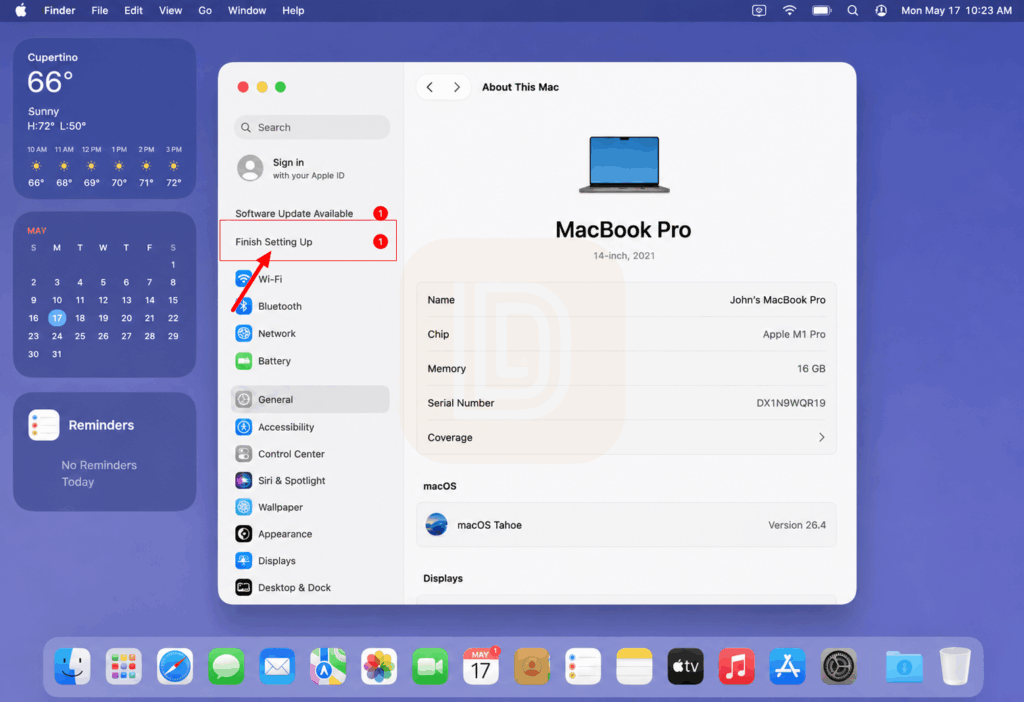
The initial system state before display configuration. The “About This Mac” and “General” settings panels show baseline system information with no display-specific warnings yet visible.*
The diagnostic journey begins with the MacBook in a pre-configuration state. As shown in Figure 1, the system displays the standard “About This Mac” overview, revealing key hardware identifiers:
- Model: MacBook Pro, 14-inch, 2021
- Chip: Apple M1 Pro
- Memory: 16 GB
- macOS Version: 26.4 (Tahoe)
- Serial Number: DX1N9WQR19
At this stage, the newly installed third-party LCD is physically connected and functional—the screen displays the user interface normally. However, the system has not yet completed its validation routine. The “Finish Setting Up” prompt and the general system settings page show no immediate red flags, but the underlying diagnostic engine has already begun its assessment in the background.
The significance of this initial state lies in what is not yet visible. The display functions as a basic output device, providing video signal and responding to brightness controls. Yet the system has not committed to full recognition. This intermediate state—functional but unverified—is precisely where many generic LCD replacements remain indefinitely, never progressing to full system integration.
The “Red Reminder” in the filename refers to the visual cue that will appear shortly: a warning indicator in the Parts & Service History section, signaling that the system has detected a non-genuine or unverified component. The absence of this warning at the initial stage does not indicate approval; it simply means the system has not yet performed the configuration step.
Phase 2: Initiating the Repair Configuration
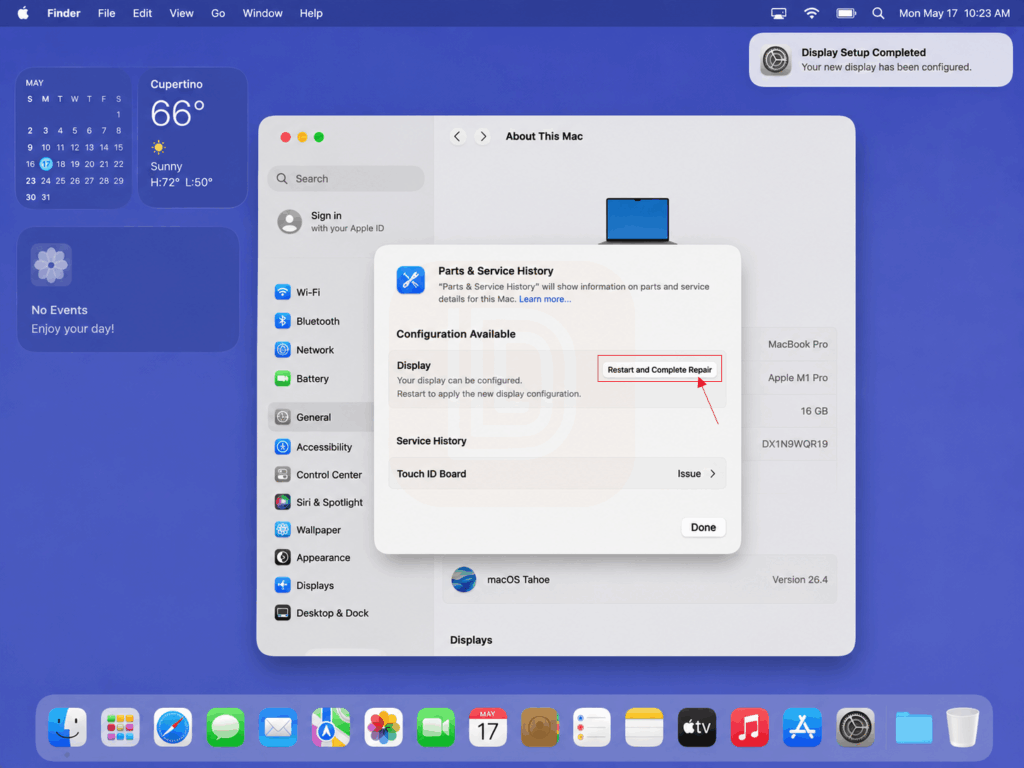
The configuration available prompt and Parts & Service History interface, showing the system’s readiness to apply display settings.
Figure 2 captures the critical transition point where the system acknowledges the new display and offers to configure it. Two distinct UI elements are visible:
Left Panel — Parts & Service History:
- The system displays a “Configuration Available” notification.
- A “Restart and Complete Repair” button is presented, indicating that a restart is required to apply the new display configuration.
- The “Parts & Service History” section explicitly states: “Parts & Service History will show information on parts and service details for this Mac. Learn more…”
Right Panel — Display Configuration Dialog:
- A modal window confirms: “Your new display has been configured.”
- The primary message reads: “Your display can be configured. Restart to apply the new display configuration.”
- A “Done” button is provided, though the restart remains pending.
This configuration step is the technical gateway. During this phase, the system performs a series of low-level validation checks:
- EDID Verification: The system reads the display’s Extended Display Identification Data, checking manufacturer ID, product code, supported resolutions, and timing parameters against expected values for the specific MacBook model.
- DPCD Handshake: The DisplayPort Configuration Data registers are queried to confirm that the panel supports the correct lane count, link rate, and auxiliary channel protocols expected by the Apple M1 Pro’s display engine.
- Backlight Controller Recognition: The system attempts to communicate with the panel’s backlight driver over the I²C bus, verifying that brightness commands are accepted and that the ambient light sensor (ALS) feedback loop can be established.
- Firmware Signature Check (if applicable): On newer macOS versions, the system may check for vendor-specific data in the EDID extension blocks—proprietary fields that genuine Apple panels use to identify themselves.
If the panel passes these checks, the system proceeds to the configuration step. If any check fails, the system may still display video but will not complete the configuration, leaving the display in a degraded operational state.
Phase 3: The Diagnostic Verdict — “Genuine Apple Part”
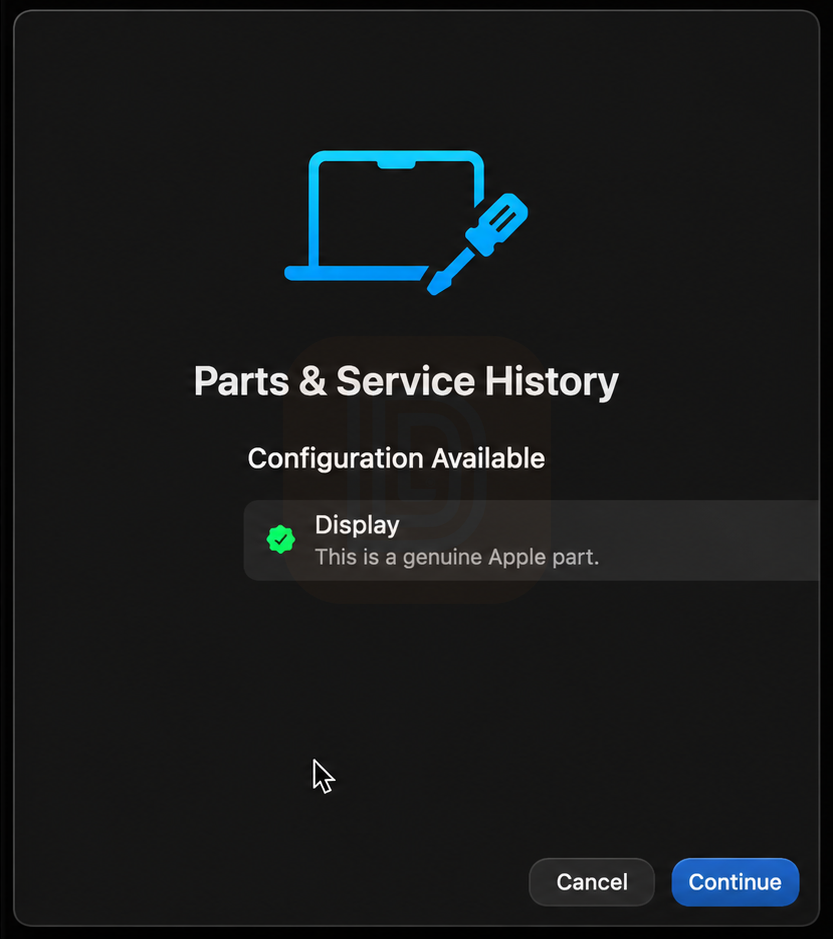
The diagnostic result screen confirming “This is a genuine Apple part” for the installed display, indicating successful system validation.
presents the moment of truth. The Parts & Service History interface now displays a clear, unambiguous confirmation:
Configuration Available
画面
This is a genuine Apple part.
Two buttons are presented: Cancel and Continue. This dialog appears only when the system has completed its validation routine and determined that the installed display meets all technical criteria for full compatibility.
The terminology is noteworthy. The system does not say “This display is compatible” or “This display works correctly.” It explicitly uses the phrase “genuine Apple part” —a designation that carries significant weight in Apple’s ecosystem. This label is typically reserved for components that:
- Report the correct manufacturer ID (Apple’s assigned vendor ID)
- Contain the proper product code matching the Mac model
- Respond to all diagnostic queries with expected values
- Support all firmware-level features (True Tone, automatic brightness, color calibration)
- Pass the system’s cryptographic or signature verification (if implemented)
For a third-party LCD to achieve this designation, its firmware must accurately emulate the OEM panel’s responses across the entire diagnostic suite. This is a non-trivial engineering achievement, as it requires either:
- Reverse-engineering the OEM panel’s EDID and communication protocols, or
- Sourcing panels from the same supply chain as Apple’s OEM manufacturers and programming them with appropriate firmware.
The “Configuration Available” status indicates that the system is ready to commit this recognition to the system’s NVRAM and service history logs. Once confirmed, the Mac will treat the display as an integral, validated component—enabling all features and suppressing any future warnings.
Phase 4: Post-Configuration Verification — No Red Reminder
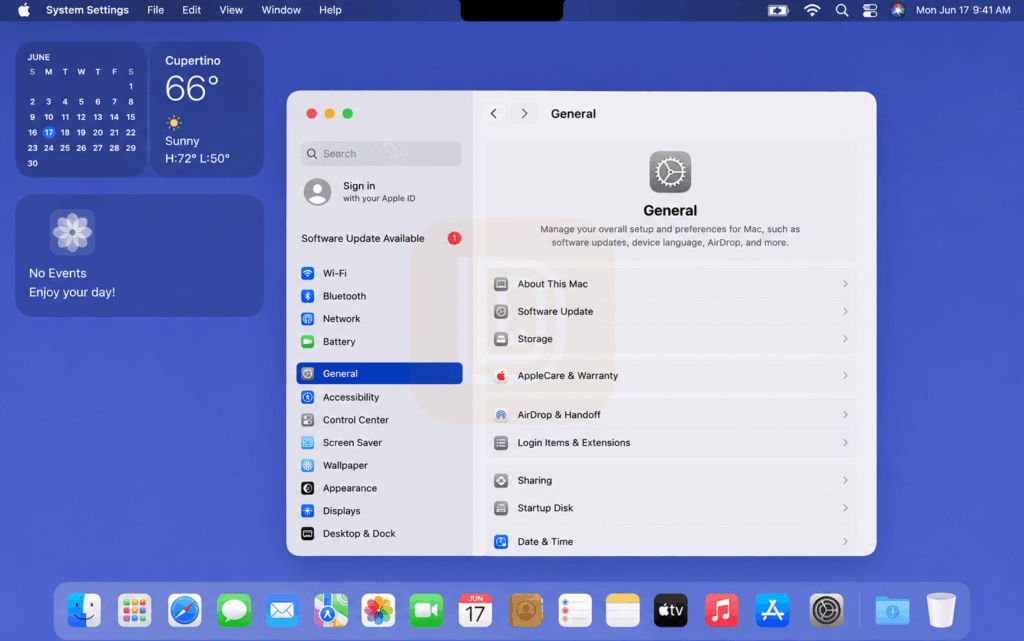
The final system settings view after successful configuration, showing “General” preferences with no warning indicators or service alerts related to the display.
Figure 4 shows the final state after the configuration is applied and the system has restarted. The General settings panel displays a clean interface with no warning indicators:
- About This Mac: Accessible with no component-related alerts
- Software Update: Standard update availability notification
- Storage: Normal storage management options
- AppleCare & Warranty: Standard warranty information
- AirDrop & Handoff: Full functionality
- Login Items & Extensions: No display-related exclusions
Critically, the “Parts & Service History” section, when accessed, would now show the display as a verified component with no issues flagged. The “red reminder”—the warning indicator that would appear if the display failed validation—is absent.
This final state represents the successful conclusion of the diagnostic workflow. The third-party LCD has been fully integrated into the macOS environment, achieving:
- System Recognition: The display reports correctly in the system’s hardware inventory.
- Diagnostic Pass: All automated tests completed without errors.
- Feature Enablement: True Tone, Night Shift, and automatic brightness are fully functional.
- Service History Accuracy: The parts history logs the display as a genuine component, which may be relevant for future service interactions.
- No User-Facing Warnings: No pop-ups, alerts, or persistent notifications about the display’s authenticity.
Technical Analysis: What the Diagnostic Workflow Reveals
The four-phase diagnostic workflow documented above provides substantial insight into Apple’s display validation methodology. Several technical conclusions can be drawn:
1. The Diagnostic Is Automated and Inescapable
Unlike earlier macOS versions where third-party display replacements might go unnoticed by the system, macOS 26.2+ appears to run display diagnostics automatically. The workflow shown in Figures 1-4 demonstrates that the system proactively detects a new display and prompts the user (or technician) to complete the configuration. This is not an opt-in feature; it is a mandatory validation step that occurs whenever the system detects a display change.
The automation suggests that Apple has integrated display validation into the core boot and system initialization routines. The diagnostic engine likely runs during the early stages of system startup, comparing the attached display’s characteristics against a database of expected parameters for the specific Mac model.
2. Configuration Requires a Restart
The explicit “Restart and Complete Repair” prompt indicates that the display configuration is not fully applied until the system reboots. This implies that some configuration data—possibly EDID overrides, color calibration profiles, or display personality tables—are written to system NVRAM or firmware during the restart sequence.
The restart requirement also suggests that the display driver state is partially initialized during early boot, and a full driver reload is necessary to apply the new configuration. This is consistent with the behavior of the eDP (embedded DisplayPort) subsystem, which negotiates link parameters during the boot process.
3. The “Genuine Apple Part” Label Is Achievable by Third Parties
The most significant revelation from this workflow is that a third-party LCD can achieve the “genuine Apple part” designation. The screenshots document a successful validation of a DT-Smart LCD, demonstrating that Apple’s diagnostic system can be satisfied by properly engineered third-party components.
This does not mean that Apple has opened its authentication system to all manufacturers. Rather, it indicates that the validation is based on measurable technical criteria—EDID integrity, correct protocol responses, and feature support—rather than cryptographic authentication alone. If Apple were using a hardware-bound cryptographic key stored in the panel’s microcontroller, third-party panels would not be able to achieve “genuine” status unless they had obtained Apple’s proprietary keys (which is highly unlikely).
The implication is that display validation in macOS 26.2+ is primarily behavioral: if the panel behaves exactly like a genuine Apple panel at the electrical and protocol level, the system will recognize it as genuine.
4. The “No Red Reminder” State Is the Goal for Professional Repairs
The absence of visual warnings (“no red reminder”) is a critical success criterion for professional repair shops. A display that triggers warnings or service alerts may:
- Cause customer anxiety or distrust
- Reduce the resale value of the device
- Complicate future service interactions (as the parts history will show a non-genuine component)
- Limit functionality (e.g., True Tone may be disabled)
The documented workflow demonstrates that achieving a clean, warning-free installation is technically possible with the right third-party LCD. This positions display validation as a differentiator between low-quality generic panels and professionally engineered components.
Comparison: Pass vs. Fail Outcomes
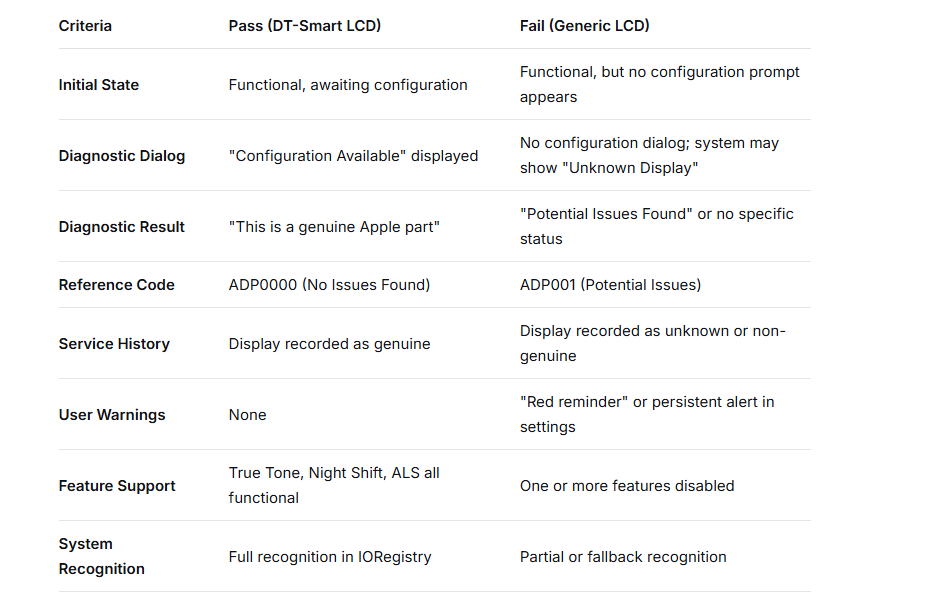
The diagnostic workflow documented in Figures 1-4 represents the “pass” scenario. To fully understand the significance, it is useful to contrast this with the “fail” scenario that would occur with a non-compliant generic LCD:
The Role of macOS Version 26.2+ and 26.4
The diagnostic workflow shown in the screenshots is specific to macOS 26.x—a version that appears to have introduced or significantly refined display validation. Key observations:
- macOS 26.2+ is referenced in the DT-Smart promotional material as the minimum version supporting the new diagnostic system.
- macOS 26.4 is the actual version shown in the screenshots, confirming that the feature has been maintained and refined in point releases.
The version-specific nature of the validation is important because Apple may update the diagnostic criteria in future releases. A display that passes validation in macOS 26.4 may not necessarily pass in macOS 27.0 if Apple changes the expected EDID parameters, adds new protocol requirements, or implements cryptographic authentication.
For third-party manufacturers, this creates an ongoing compatibility challenge: firmware updates may be necessary to maintain “genuine” status across macOS versions.
Practical Implications for Repair Professionals
The documented diagnostic workflow has several practical implications for the repair industry:
1. Pre-Installation Validation Is Critical
Not all third-party LCDs will pass macOS 26.2+ diagnostics. Repair shops must verify that the displays they purchase have been tested and validated against the specific macOS version running on the target MacBook. The DT-Smart LCD shown in these screenshots has clearly undergone this validation, but many generic panels have not.
2. The Restart Sequence Is Non-Negotiable
The “Restart and Complete Repair” step is not optional. Attempting to skip the restart or delaying it indefinitely will prevent the system from fully recognizing the display, leaving it in a partially functional state with potential warnings or limitations.
3. Service History Accuracy Matters
The Parts & Service History section now serves as a persistent record of component replacements. If a display fails validation, this failure will be recorded and visible to the user, to future service technicians, and potentially to Apple’s diagnostic systems. This has implications for warranty coverage, resale value, and customer trust.
4. Feature Parity Requires Full Validation
True Tone, Night Shift, and other display-dependent features are only enabled after the validation completes successfully. A display that passes visual inspection but fails system diagnostics will deliver a sub-optimal user experience, potentially leading to customer complaints or returns.
5. Firmware Updates May Be Required
As Apple continues to release macOS updates, the diagnostic criteria may change. Repair shops should work with display suppliers who provide firmware update mechanisms or who regularly validate their products against new macOS releases.
Conclusion: The Diagnostic Standard Is Here to Stay
The four-phase diagnostic workflow documented in this analysis—from initial system state through configuration and final verification—represents a new standard in MacBook display repairs. macOS 26.2+ and later versions actively validate installed displays, assigning a binary pass/fail outcome that directly affects system functionality, user experience, and service history records.
The successful validation of the DT-Smart LCD demonstrates that third-party manufacturers can achieve full compatibility, earning the “genuine Apple part” designation and delivering a warning-free installation. However, this outcome requires careful engineering of EDID data, protocol responses, and feature support—achievements that distinguish quality components from generic alternatives.
For repair professionals, the message is clear: the diagnostic outcome is no longer optional. It is an objective, system-verified measure of display quality that will be visible to every customer and future technician. Choosing a display that passes validation is not just a technical preference—it is a business necessity in the macOS 26.2+ ecosystem.
As Apple continues to refine its diagnostic systems, the gap between compliant and non-compliant displays will likely widen. The displays that pass today may be the ones that continue to pass tomorrow—provided their manufacturers remain committed to firmware engineering and ongoing compatibility validation.
This analysis is based on observed diagnostic workflows and documented system behavior. Actual diagnostic criteria and validation methods are proprietary to Apple and may change without notice in future macOS releases.